
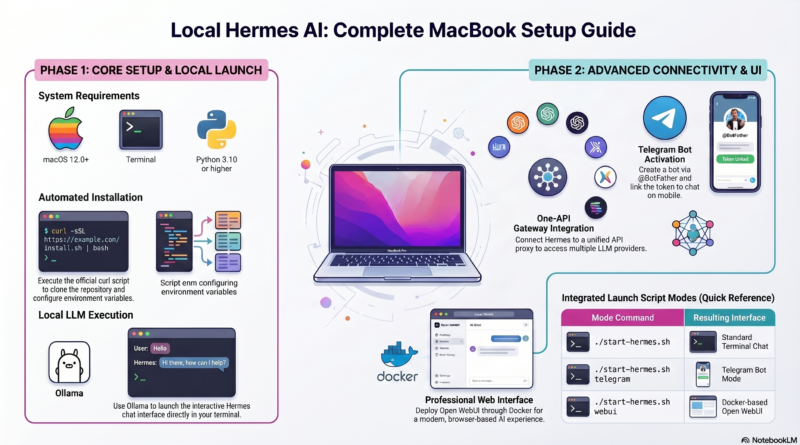
MacBook本地搭建Hermes AI助手完整指南
MacBook本地搭建Hermes指南
本文详细介绍如何在MacBook上从零开始配置Hermes AI助手,涵盖安装、LLM配置、Telegram和Open WebUI集成。
环境要求
- macOS 12.0 或更高版本
- Terminal 终端
- Homebrew(推荐)
- Python 3.10+(部分功能需要)
—
第一步:安装Hermes
打开终端,执行官方安装脚本:
curl -fsSL https://raw.githubusercontent.com/NousResearch/hermes-agent/main/scripts/install.sh | bash
安装过程会自动:
- 克隆Hermes仓库
- 配置必要的环境变量
- 安装依赖项
安装完成后,重新加载shell配置:
source ~/.zshrc  # 如果使用zsh
# 或
source ~/.bash_profile  # 如果使用bash
验证安装:
hermes --version
—
第二步:使用Ollama启动Hermes
Hermes需要通过Ollama与云端LLM通信。首先确保Ollama已安装:
# 如果没有Ollama,先安装
brew install ollama

# 启动Ollama服务
ollama serve
在另一个终端窗口启动Hermes:
ollama launch hermes
这将启动一个交互式聊天界面,可以直接与Hermes对话。
—
第三步:配置Hermes连接One-API服务器
One-API是统一的API网关,可以代理多个LLM提供商。
3.1 启动One-API服务
参考我们之前的文章,在VPS上启动One-API服务:
# 在服务器上
docker run -d --name one-api -p 3000:3000 ghcr.io/songquanpeng/one-api:latest
访问 `http://你的服务器IP:3000` 配置API Key。
3.2 配置Hermes环境变量
在MacBook终端中设置:
export ONE_API_URL="http://162.43.92.249:3000/v1"
export ONE_API_KEY="your-api-key-here"
将上述内容添加到 `~/.zshrc` 使其永久生效:
echo 'export ONE_API_URL="http://162.43.92.249:3000/v1"' >> ~/.zshrc
echo 'export ONE_API_KEY="your-api-key-here"' >> ~/.zshrc
source ~/.zshrc
3.3 验证连接
hermes --test
应该能看到成功连接提示。
—
第四步:配置Telegram频道
Hermes支持Telegram机器人作为聊天渠道。
4.1 创建Telegram机器人
1. 打开Telegram,搜索 @BotFather
2. 发送 `/newbot` 创建新机器人
3. 记下机器人Token
4.2 配置Hermes
export TELEGRAM_BOT_TOKEN="your-bot-token"
export TELEGRAM_ALLOWED_USERS="your-telegram-username"
4.3 启动Telegram模式
hermes --telegram
现在可以直接在Telegram中与Hermes对话。
—
第五步:配置Open WebUI聊天渠道
Open WebUI是一个现代化的Web聊天界面。
5.1 安装Docker(如果未安装)
brew install --cask docker
5.2 启动Open WebUI
docker run -d -p 8080:8080 --add-host=host.docker.internal:host-gateway \
  -v open-webui:/app/backend/data \
  --name open-webui \
  --restart always \
  ghcr.io/open-webui/open-webui:main
5.2 配置API端点
1. 访问 `http://localhost:8080`
2. 进入设置(Settings)
3. 找到API设置
4. 配置One-API地址:`http://162.43.92.249:3000/v1`
5. 输入API Key
5.3 启动Hermes作为后端
hermes --webui --port 8080
—
完整启动脚本
创建一个启动脚本 `start-hermes.sh`:
#!/bin/bash

# One-API配置
export ONE_API_URL="http://162.43.92.249:3000/v1"
export ONE_API_KEY="your-api-key-here"

# Telegram配置(可选)
export TELEGRAM_BOT_TOKEN="your-bot-token"

# 选择启动模式
MODE=${1:-chat}

case $MODE in
  telegram)
    hermes --telegram
    ;;
  webui)
    hermes --webui --port 8080
    ;;
  *)
    ollama launch hermes
    ;;
esac
赋予执行权限:
chmod +x start-hermes.sh
使用方法:
./start-hermes.sh        # 终端聊天模式
./start-hermes.sh telegram  # Telegram模式
./start-hermes.sh webui     # WebUI模式
—
故障排查
无法连接One-API
- 检查服务器防火墙是否开放3000端口
- 验证API Key是否正确
- 确认VPS和MacBook网络连通性
Telegram机器人无响应
- 检查Bot Token是否正确
- 确认已发送 `/start` 给机器人
Open WebUI连接失败
- 确认Docker容器正常运行:`docker ps`
- 检查端口8080是否被占用
—
相关资源
- [Hermes官方仓库](https://github.com/NousResearch/hermes-agent)
- [One-API项目](https://github.com/songquanpeng/one-api)
- [Open WebUI](https://github.com/open-webui/open-webui)
—
*配置完成后,你将拥有一个完整的本地AI助手,可以选择通过终端、Telegram或Web界面与它交互。*