
How to Download Gemma 4 via Ollama and Use OpenClaw on MacBook Intel
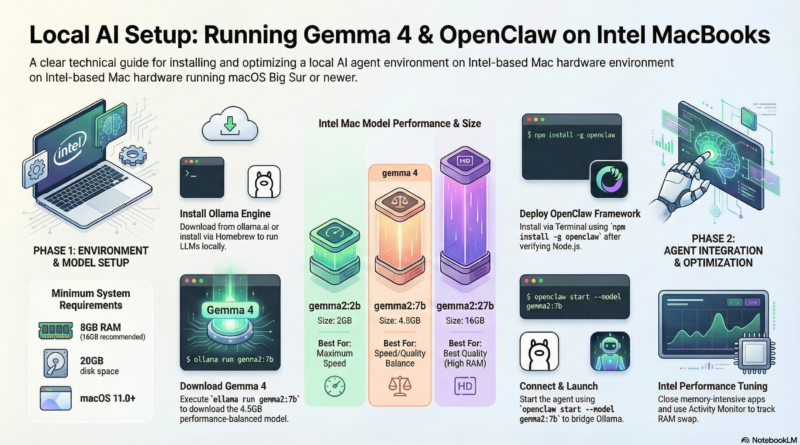
This guide will walk you through setting up Gemma 4 with Ollama and running OpenClaw on an Intel-based MacBook. Gemma 4 is Google’s latest open-source language model, and Ollama makes it easy to run locally on your Mac.
Prerequisites
- Intel-based MacBook (2019 or later recommended)
- macOS 11.0 (Big Sur) or later
- At least 8GB RAM (16GB recommended)
- 20GB free disk space
- Terminal access
Step 1: Install Ollama
Ollama is the easiest way to run large language models locally on macOS. Here’s how to install it:
Option A: Download from Website (Recommended)
- Visit https://ollama.ai
- Click the “Download for macOS” button
- Open the downloaded .dmg file
- Drag Ollama to your Applications folder
- Launch Ollama from Applications
Option B: Install via Homebrew
brew install ollamaStep 2: Download Gemma 4 Model
Once Ollama is installed, download the Gemma 4 model. Gemma 4 comes in different sizes – we’ll use the 7B parameter version which offers good performance on Intel Macs:
ollama pull gemma2:7bThis will download approximately 4.5GB of data. The download may take several minutes depending on your internet connection.
Alternative model sizes:
gemma2:2b– Smaller, faster (2GB)gemma2:9b– Better quality, slower (5.5GB)gemma2:27b– Best quality, requires more RAM (16GB)
Step 3: Verify Gemma 4 Installation
Test that Gemma 4 is working correctly:
ollama run gemma2:7bYou should see a prompt where you can interact with the model. Try asking a simple question:
What is the capital of Japan?To exit, press Ctrl+C or type /bye.
Step 4: Install OpenClaw
OpenClaw is an AI agent framework that can use local models like Gemma 4. Here’s how to set it up:
Install Node.js (if not already installed)
brew install nodeVerify installation:
node --version
npm --version
Install OpenClaw
npm install -g openclawStep 5: Configure OpenClaw to Use Gemma 4
OpenClaw needs to know how to connect to your local Ollama instance. Create or edit the OpenClaw configuration:
openclaw config set model.ollama.enabled true
openclaw config set model.ollama.base_url http://localhost:11434
openclaw config set model.ollama.model gemma2:7b
Step 6: Start OpenClaw with Gemma 4
Launch OpenClaw with your local Gemma 4 model:
openclaw start --model ollama/gemma2:7bOpenClaw will start and connect to your local Ollama instance running Gemma 4.
Step 7: Test OpenClaw with Gemma 4
Once OpenClaw is running, you can interact with it through various interfaces:
Command Line Interface
openclaw chatTry asking a question to verify everything is working:
Explain quantum computing in simple terms.Web Interface (Optional)
OpenClaw also provides a web interface. Start it with:
openclaw webThen open your browser to http://localhost:3000.
Performance Tips for Intel Macs
Here are some tips to get the best performance from Gemma 4 on Intel-based MacBooks:
- Use the right model size: The 7B version offers the best balance of speed and quality for most Intel Macs. The 2B version is faster but less capable.
- Close other applications: Large language models are memory-intensive. Close unnecessary apps to free up RAM.
- Use Activity Monitor: Keep an eye on memory usage. If you’re swapping to disk, consider using a smaller model.
- Enable GPU acceleration: Some Intel Macs have integrated GPUs that can help. Check Ollama’s documentation for GPU-specific optimizations.
- Adjust context window: Smaller context windows use less memory. Configure this in OpenClaw settings if needed.
Troubleshooting
Ollama won’t start
Make sure Ollama is running:
ollama serveOpenClaw can’t connect to Ollama
Verify Ollama is running on the correct port:
curl http://localhost:11434/api/tagsOut of memory errors
Try a smaller model:
ollama pull gemma2:2b
openclaw config set model.ollama.model gemma2:2b
Slow response times
This is normal on Intel Macs without dedicated GPUs. Consider:
- Using a smaller model (2B instead of 7B)
- Reducing the context window size
- Running fewer concurrent requests
Next Steps
Now that you have OpenClaw running with Gemma 4, you can:
- Explore OpenClaw’s skills and plugins
- Create custom agents for specific tasks
- Integrate with other tools and services
- Build automated workflows
Check the OpenClaw documentation for more advanced configuration options and features.
Conclusion
Running Gemma 4 with Ollama and OpenClaw on an Intel MacBook is a great way to experiment with local AI models without needing expensive hardware. While performance may not match dedicated GPU systems, it’s more than sufficient for development, testing, and many practical applications.
Happy coding!